Showing posts with label hardware. Show all posts

Saturday, November 09, 2024

Current Tools

I'm posting this mostly because it's interesting to look back and see how things change.

Hardware

Desktop - 27" 2017 iMac Pro. Considering it's 8 years old, performance is still quite reasonable. It's a 3.2 GHz 8 core Intel Xeon with 64 GB of DDR4 memory.

Laptop - 16" 2019 MacBook Pro with a 2.3 GHz 8 core Intel Core i9, also with 64 GB of DDR4 memory.

Apple could almost certainly have sold me a new machine, if they still made 27" iMacs, and if they didn't charge a fortune to get 64 GB of memory. Also, moving to an Apple cpu would make it harder to run a Windows VM.

Keyboard - For the last 5 years I've been using Varmilo mechanical keyboard with Cherry MX Silver switches.

NAS - Synology DS920+ NAS with four 10 TB drives for 26 TB of redundant capacity.

Wifi - Netgear Orbi RBR50 + Satellite

Software

IDE/editor - VSCodium - the open source version of VSCode, without tracking. Prior to VSCode I used Microsoft Visual Studio for C++ and Eclipse for Java.

Programming Language - Go - I made a bet on Go over 10 years when it was still new. Back then it was barely production ready. Luckily, it has improved hugely and has become relatively mainstream. Like any language, it has its quirks, but for the most part I'm happy with it. Rust is interesting, but Suneido needs garbage collection. I don't miss C++ or Java.

Version Control - Git & Github

Parallels VM's for Windows and Linux

Browser - Firefox - I'm not particularly a fan of Firefox and I'd rather Mozilla would focus on making a good browser instead of going off on tangents like the AI bandwagon. But I hate the thought of Google having a 100% monopoly on browsers. I could use Safari but I'm not crazy about the megacorp that Apple has become either.

Notes - Obsidian - I used Evernote for a long time, then moved to Joplin, and finally to Obsidian for the last few years. I like that it doesn't have a proprietary database, just markdown files in directories. And I'm happy with its wysywyg markdown editor. Unfortunately, it's not open source.

Dropbox - I used to rely on Dropbox to keep my office and home computers in sync. Now that I work from home full time it's more to keep my desktop and laptop in sync. It's also nice to be able to access files from my tablet or phone occasionally.

Antivirus - Bitdefender

Cloud Backups - Backblaze

Sync - Chronosync - to mirror my 5 TB of photos to the Synology NAS

Local Backups - Restic - More for developers than consumers but seems to work well. I've tried various other backup programs and haven't liked any of them.

Apple's Time Machine is a great concept but it's never been reliable for me. It'll stop backup up without any kind of notification. Or the backups will become corrupted and you have to start over. I suspect the combination of using a NAS and having a huge number of files is too much for it.

Thursday, February 04, 2016

New PC


In many ways PC performance has leveled off. There are minor improvements in CPU and memory speed but nothing big. But there has been a significant improvement in performance with the Skylake platform supporting SSD connected via PCI Express.

Based on a little research, here were my goals:
  • fast SkyLake CPU
  • 32gb DDR4 ram
  • 512 gb M2 SSD
  • small case (no external cards or drives)
  • 4K IPS monitor
And here's what I ended up getting:
  • Asus Z170I Pro Gaming mini ITX
  • Intel Core I7-6700K 4.00 GHz  
  • Corsair Vengeance LPX 32GB (2x16GB) DDR4 DRAM 2666MHz (PC4-21300)
  • Samsung 950 PRO - Series 512GB PCIe NVMe - M.2 Internal SSD
  • Fractal Design 202 case
  • ASUS PB279Q 27" 4K/ UHD 3840x2160 IPS
I don't do any gaming, but that was the only mini ITX motherboard I could find that fit my requirements.

The case was the smallest I could find that would fit this stuff. The frustrating part is that it could be half the size. The empty half of the case is for cards or external drives, but I didn't want either of those. It's a little hard to tell from the picture, but the motherboard is only 7" square, not much bigger than the fan. The power supply is almost as big as the motherboard.

And here's a comparison of my new SSD (top) to the old one (bottom). Higher numbers are better.


The big advantage of SSD over hard disks is the seek time for random IO. But the biggest gains here were for sequential IO. Still, some respectable improvements across the board. Of course, how that translates into actual overall performance is another question.

I try not to buy new machines too often. At least I know my old one, which is still working fine, will be put to good use by someone else in the office.

I'm not a hardware expert, here's where I got some advice:
Building a PC, Part VIII
Our Brave New World of 4K Displays

Friday, July 12, 2013

Systems Upgrade

I haven't done anything with my home computer systems for several years and it seemed like time for some upgrades and some preventative maintenance.

My Time Capsule is getting older and I knew sooner or later it would fail. It's nice having wireless router and network storage all in one unit. On the other hand, if it fails you're in trouble. Being paranoid about backups, I also decided I should have some kind of redundant storage.

So I replaced the Time Capsule with an ASUS RT-AC66U wireless router and a Synology DS413 4 bay NAS server with three 2tb Western Digital Red drives. The default setup for the Synology NAS will handle a single drive failure without losing any data. It combines the capacity of all the drives so I ended up with about 4tb of storage from the three 2tb drives. I can add a fourth drive at any time (of any size) if I need more space. This was a pretty painless upgrade and improved both wireless and storage speed and space.

I've been mildly tempted by a new iMac, but mostly for more memory and an SSD, which I decided I could get without replacing the whole machine, since it's got a decent i7 and is otherwise fine. (USB 3 and Thunderbolt would be nice, but not essential.) One advantage of the older iMac over the newer models is that it has the SD memory card slot on the side whereas the new "skinny" machines have it on the back where it would be a lot more awkward to use.

The trick was that I need more space (mostly for photos) than I can reasonably get with an SSD, which meant an SSD plus a hard drive. But since my model of iMac doesn't have space for a second drive, that meant removing the optical drive and putting the SSD there (using a "data doubler"). I didn't really mind losing the optical drive - I can't remember the last time I used it. A new iMac wouldn't have had one anyway. And I can always get an external one.

I could have kept the existing 2tb hard drive since it wasn't full, but I decided to set up a "Fusion" drive which combines the hard drive and SSD and automatically migrates data to the appropriate drive. This requires wiping out the hard drive and I was nervous about depending on my backups. So I bought a new 3tb Seagate Barracuda drive and kept the old drive as an extra backup.

I also upgraded the memory from 8gb to 16gb.

Having been in the computer business through the whole progression from 5mb hard drives to 500mb, to gigabytes, and now to terabytes, I sometimes have to think twice about the sizes I'm talking about. Is that backup 1000mb or 1000gb? I know everyone's tired of hearing it from us old timers, but it's still mind boggling that the current drives have grown something like a million times bigger over the course of one working career.

If it had been a PC I probably would have done the upgrade myself (although my hardware days are long past), but to get inside an iMac you have to take the glass off the front which seemed a little scary to me so I got our local Apple dealer to do it.

I had made an OS X installer USB thumb drive beforehand and I had no problems booting from this, setting up the Fusion drive, and installing OS X. Then I used the Migration Assistant to restore from my Time Machine backup. This took roughly 4 hours for about a terabyte of data and restored all my files and applications. It was nice not having to re-install applications.

The only thing I missed was my Parallels Windows VM. For some reason this wasn't included in my Time Machine backup. I had previously excluded it, but I was sure I had started including it. I'm not sure what happened.

I put my old hard drive into an external USB 3 / Firewire 800 enclosure and retrieved the VM with no problems.

The iMac definitely seems faster. If I watch the drive activity (using iStat Menus) it appears the Fusion drive is working properly. The only concern I have is that the new hard disk seems to be running quite hot, even when the machine has been "sleeping". The preferences are set to power down the drive but it maybe that isn't working.

All in all it went quite smoothly and hopefully will keep me happy for a few more years.

Tuesday, July 02, 2013

Of Mice and Keyboards

At home, on my iMac, I use the Apple full size wired keyboard and magic (touch) mouse. (In addition to not having to worry about batteries, the wired keyboard also has USB ports at either end which are much more accessible than the back of the computer.) I have a magic trackpad too, but I don't find I use it much.

At work, on my Windows PC, I wanted a similar keyboard. For a while I used the same Apple keyboard, but it wasn't ideal because it's missing Windows specific keys.

So I switched to the Logitech Wireless Solar keyboard, which has a similar look and feel but with a Windows layout. I've been pretty happy with it. The solar has worked great and it's nice not to have to change batteries. We've ended up with quite a few of these around the office.


Unlike many people, I actually liked it when Apple switched the default direction of mouse scrolling. Partly, I guess, because it was similar to iPhone and iPad.

But I had a hard time switching between one direction of scrolling at home, and another at work. I also quite liked the Apple magic touch mouse, so I bought the Logitech t620 Touch Mouse which is quite similar.


At first, I thought it was pretty good. But after a while it started to drive me crazy. It was way too sensitive and I would end up scrolling all over the place unintentionally. I stuck with it, thinking I'd get used to it, but if anything it got worse after a driver update. I occasionally have the same problem with the Apple mouse, but nowhere near as bad.

I finally got fed up and shopped for a new mouse. (Hopefully someone else in the office will have better luck with it.) I wanted another Logitech one so I could share the same dongle. I could have gone back to a traditional mouse wheel, but I decided to try the Logitech t400 Zone Touch Mouse.


But things are never simple with computers - I couldn't get the reverse scrolling to work. Logitech's Set Point software has a check box for this, but it had no effect. I did the usual incantations of uninstall, reinstall, reboot, etc. but no luck.

When I started searching the web, I remembered that originally I had used a registry hack to switch scrolling direction. Even better, someone had supplied a Powershell command line to do it, rather than manually editing the registry.  (It would be nice if the Windows control panel had a way to change this setting.) But it still didn't work! I ended up uninstalling the Logitech Set Point software. The mouse works fine without it, and now the scrolling works the way I want.

So far I've been pretty happy with this compromise. I occasionally find myself trying to scroll with my finger not on the touch part, but other than that it seems fine. It still has the ability to scroll horizontally, which is occasionally useful, but because the touch sensitive area is limited, I don't find I trigger it accidentally. The smallish size, and rubber sides feel quite comfortable.

Hopefully this combo will keep me happy for a while!

Sunday, November 21, 2010

One Bump in an Otherwise Smooth iMac Upgrade

I recently upgraded my 24" Core 2 Duo iMac to a 27" i7 iMac.

My usual rule of thumb is not to upgrade till the new machine will be twice as fast as the old one. But that rule is getting harder to judge. For a single thread, the i7 is not twice as fast. But with 8 threads (4 cores plus hyper-threading) it definitely has the potential to run much more than twice as fast. The iPhone MacTracker app shows the new machine with a benchmark of 9292 versus the old machine at 3995. I'm not sure what benchmark that's using.

I've been thinking about upgrading for a while but as winter arrives and I spend more time on the computer, I figured it was time. Another motivation for the upgrade was to be able to test the multi-threading in jSuneido better.

I really wanted to get the SSD drive to see how that would affect performance. But that option is still very expensive. Especially since I'd still need a big hard drive as well for all my photographs. So I didn't go for it this time. I'm not sure how big a difference it would have made for me. My understanding is that it mostly speeds up boot and application start times. But I generally boot only once a day and tend to start apps and then use them for a long time. It would be interesting to see how Suneido's database performed on an SSD.

I did upgrade from 4gb of memory to 8gb. Most of the time 4gb is fine, but when I run two copies of Eclipse (Java and C++), Windows under Parallels, Chrome with a bunch of tabs, etc. then things started to get noticeably sluggish. With the new machine things don't seem to slow down at all. And I can allocate more memory and cores to my Windows virtual machine. I also upgraded from a 1tb hard disk to 2tb. I hadn't filled up the 1tb, but I figure you can never have too much hard disk space and the cost difference wasn't that big.

Migrating from one machine to the other went amazingly smoothly and quickly - the easiest migration I've done. With Windows machines I never try to migrate any settings or applications since you need to clean everything out periodically anyway. I'm sure even with OS X there is a certain amount of "junk" accumulating (e.g. old settings) but it doesn't seem to cause any problems.

I used OS X's migration tool but I wasn't sure what method to connect the machines - Firewire, direct network connection, network via LAN, or via Time Machine backup. In the end I went with migrating from the Time Machine backup, partly because it didn't tie up my old machine and I could keep working.

Some estimates from the web made me think it might take 10 or 20 hours to migrate roughly 600gb, but it was closer to 2 hours - nice.

The one speed bump in this process was my working copy of jSuneido. I keep this Eclipse workspace in my DropBox so I can access it from work (or wherever). Because I migrated from a Time Machine backup, my new workspace was a few hours out of date. DropBox on the new machine copied these old files over the newer ones. Then DropBox on the old machine copied the old files over it's newer ones. So now both copies were messed up. No big deal - DropBox keeps old versions, I'd just recover those. Except I couldn't figure out any easy way to recover the correct set of files without a lot of manual work. (I could only see how to restore one manually selected file at a time, with no way to easily locate the correct set of files that needed to be restored.) No problem - I'd get the files back from version control. Except for some reason I couldn't connect to version control anymore. Somehow the unfortunate DropBox syncing had messed up something to do with the SSL keys. Except the keys were still there since I could check out a new copy from version control. Eventually, after a certain amount of thrashing and flailing I got a functional workspace. I still ended up losing about 2 hours of work, but thankfully it was debugging work driven by failing tests and it didn't take long to figure out / remember the changes.

Although the new 27" display is only about 10% bigger than the old 24", the resolution has increased from 1920 x 1200 to 2560 x 1440 - almost a third bigger, and quite a noticeable difference. But because of the higher DPI resolution, everything got smaller. As my eyes get older, smaller text is not a good thing!

After all these years, with all the changes in display sizes and resolutions, you'd think we'd have better ways to adjust font sizes. Most people simply resort to overriding the display resolution to make things bigger, but that's a really ugly solution. But I can see why they do it. There's no easy way in OS X to globally adjust font sizes. You can only tweak them in a few specific places. Windows is actually a little better in this regard, but still not great. And even if you manage to change the OS, you still run into applications that disregard global settings.

And history continues to repeat itself. iPhone apps were all designed for a specific fixed pixel size and resolution. Then the iPad comes along and the "solution" is an ugly pixel doubling. Then the higher resolution retina display arrives and causes more confusion. When will we learn!

Even Eclipse, that lets you tweak every setting under the sun, has no way to adjust the font size in secondary views like the Navigator or Outline. This has been a well known problem in Eclipse since at least 2002 (e.g. this bug or this one) but they still haven't done anything about it. I'm sure it's a tricky problem but how hard can it be? Is it really harder than all the other tricky problems they solve? Surely there's something they could do. Instead they seem to be more interested in either denying there's a problem, arguing about which group is responsible for it, or reiterating all the reasons why it's awkward to fix.

Of course, it's open source, so the final defense is always - fix it yourself. Sure, I'll dive into millions of lines of code and find the exact spot and way to tweak it. I think it might be just a little easier for the developers that spend all there time in there to do it. I won't ask them to fix the bugs in my open source code, if they don't ask me to fix the bugs in their open source code.

On the positive side, Eclipse's flexibility with arranging all the panes virtually any way you want lets me take advantage of the extra space. It's a little funny though, because even with a big font, the actual source code pane is only about 1/3 of the screen. It's nice to have so many other panes visible all the time, but there are times when it would be nice to hide (or "dim") all the other stuff so I could focus on the code.

All in all, I'm pretty happy with the upgrade.

Note: No computers were killed in this story :-)  Shelley is taking over my old iMac and her nephew is taking over her old Windows machine.

Wednesday, July 07, 2010

Time Capsules

I use an Apple Time Capsule for my home wireless router and backup storage.

Time Capsules have a bad reputation for dying and I've had mine for quite a few years so I was a little nervous about it. If it died I wouldn't have a backup of my iMac. Which would be ok unless it happened to die at the same time. This seems unlikely, but it's surprising how often you do get simultaneous failures. For example, a power surge due to lightning. I can also keep the external drive at work so I have an offsite backup in case the house burns down.

I had a 500gb external drive that I'd used for backups, but it's not big enough to do a complete backup of my 1tb iMac. So I went and bought a Lacie 2tb external drive and used SuperDuper to make a backup. I used the free version, but I'll probably get the paid version so I can update the backup without redoing it.

Then I decided I should also backup my MacBook and my MacMini. I didn't have much critical stuff on them, but a backup would save hassle if I needed to restore. But SuperDuper takes over the whole drive so how could I backup additional machines? The answer seemed to be to partition the drive, but I didn't want to have to redo my iMac backup (600gb takes a while to backup, even with Firewire 800). I searched on the web and found various complicated ways to resize partitions. Finally, I found that with recent OS X you can resize right from the Disk Utility. All the complicated instructions were for older versions of OS X.

The "funny" part of this story is that a few days later I went to use wireless and it wasn't working. I went and checked on the Time Capsule and it was turned off. Strange, because I leave it running all the time. I turned it on and about 10 seconds later it turned itself back off.

My computer was still fine, so I didn't actually need the external backup, but I was glad to have it nonetheless.

I phoned the local Apple dealer (Neural Net). The receptionist wanted me to bring it in and they would look at it in the next few days. I didn't want to be without internet for days so she let me speak to the technician. When I described the symptoms he said the power supply had died. But Apple doesn't let them repair them and doesn't supply any parts. Apple has been promoting their environmentally friendly products, but no matter how they're built, a non-repairable "disposable" product isn't very environmentally friendly.

I would have preferred to give Neural Net the business but they didn't have any Time Capsules in stock so I picked up a 2tb Time Capsule from Future Shop. 10 minutes after opening the box I was back up and running. (Although the initial Time Machine backups took considerably longer.)

One nice thing is that Time Machine backups seem to be a lot less intrusive. Before, when Time Machine kicked in it would really bog down my machine. If I was trying to work I'd often stop it. But now I don't even notice when it runs. I'm not sure how a new external device would change the load on my computer, but it's nice anyway.

My old Time Capsule ran quite hot, even when it wasn't doing anything. I was hoping the new ones would be better, but it seems much the same. I haven't measured it, but I assume heat means power consumption. I'm not sure why it can't go into a low power mode when it's not active. The other reason they run hot is that they have no ventilation or heat sink. Apparently there is an internal fan but all it does is stir the air around inside a small sealed box. You'd think they could come up with some better heat management without compromising their design. I would guess the heat is one of the big reasons they have a reputation for dying. Electronic components tend to have a shorter life at higher temperatures.

Rather than throwing out the old Time Capsule, I passed it on to one of the guys at work that tinkers with hardware. I thought he could at least extract the 1tb drive. But he managed to repair the power supply and is using the whole unit. I guess the hardest part was getting the case open! I'm glad it was saved from the landfill for a while longer.

Now that I have a bigger drive I thought I might as well backup Shelley's Windows machine as well. I have it set up with Mozy for on-line backups but just with the free 2gb account so I'm only backing up selected things. I'd seen Mozy will now backup to external drives so I thought I'd set this up. Unfortunately, it only backs up to directly attached drives (i.e. internal or USB) not to network drives. I'm not sure what the logic is behind that choice. I could use different software, but I think what I'll do (I haven't got round to it yet) is to use the old 500gb external drive.

Wednesday, April 07, 2010

Not Sold on Multiple Monitors

Jeff Atwood recently posted about using three monitors. He's a big fan of multiple monitors.

Personally, I'm not so sure. A few years ago we upgraded almost everyone at our company to dual monitors. I was one of the few hold outs.

At that point, one of my arguments was that I preferred one large monitor to two smaller ones. Even if the surface area is larger, two monitors isn't so good if you want one large window (e.g. Eclipse or Lightroom). Of course, if money isn't an issue, you could just have two (or three) large monitors.
To be clear, I'm not saying there aren't good, valid uses for multiple monitors. Studies have shown they can increase productivity. But I'm not sure that translates into normal usage. As the saying goes, "In theory, theory and practice are the same. In practice, they are not."

I think the key issue is how people use multiple monitors. I suspect that many people use them in ways that are counter productive, that just add distraction and interruptions to their environment. I think you should be closing your email and chat and Twitter and Facebook - not using multiple monitors to keep them constantly in your face.

Of course, it's virtually impossible to wean people away from keeping email etc. open all the time. It doesn't matter how much you talk about the cost of distractions and interruptions. Regardless of the excuses they give, I think the problem is that a lot of people welcome these distractions. After all, it's hard work to focus on one task for extended periods.

If you're going to focus on one thing at a time, then do you still need multiple monitors? Occasionally, I would like to have documentation or the program I'm working on open as well as my IDE. But I find virtual desktops to work pretty well for this.

I do agree that ending up with one monitor straight ahead is an advantage of three monitors over two.

Sunday, January 31, 2010

The Magic Mouse

I finally got the new Apple Magic Mouse. It came out before I went on holidays in mid December, but no one had them in stock. As you'd expect, it's very slick looking.

So far I'm pretty happy with it. My biggest complaint about the previous Apple Mighty Mouse was that the right click was really erratic. Not a big deal on OS X since it doesn't use right click too much, but a major issue when running Windows (under Parallels). Right click on the Magic Mouse seems much better. The other less serious, problem with the Mighty Mouse was that the scroll ball would get dirty and quit working, but it became second nature to clean it (by running it around on your hand or pants).

My only complaint is with the left and right swiping for horizontal scrolling - it's a little too easy to trigger by mistake. Again, that doesn't matter most of the time because there's nothing to horizontally scroll. But in Adobe Lightroom I keep switching images by mistake. And it's touchy enough that it zips through half a dozen images, making it a nuisance to get back to the one you were working on.

I tried installing Better Touch, a free program that lets you tweak all kinds of Magic Mouse and touchpad stuff. But for some reason it doesn't seem to work with Lightroom. Maybe Lightroom is using a different interface to the mouse. There doesn't seem to be any way to adjust the behavior in Lightroom either. I'd be happy just to turn off horizontal scrolling by left and right swiping - it's not something I need a lot.

I'm still getting used to the scrolling with momentum. It's a bit like the iPhone/Touch. I've been catching up in Google Reader and it seems to work well there.

Another minor issue was the lack of a middle button. On the Mighty Mouse you could click on the scroll ball to get a middle click. I had this configured to trigger Expose since I had the function keys set to be function keys (for Suneido on Windows on Parallels). Better Touch solves this since it lets you add a middle click.

Friday, June 12, 2009

Continuous Obsolescence

I see my 13" MacBook has already been replaced by a new model.

It's been moved to the "Pro" label, gained its Firewire connector back, and now has an SD slot (which I'd like for downloading photos).

Apple seems to be coming out with new models faster than ever. The model I have was only out for 7 months before being replaced! Most software doesn't get upgraded that quickly, let alone hardware.

I like the rapid improvement, but I hate the resulting feeling of being left behind! Too bad we can't get automatic updates like software :-)

Wednesday, May 27, 2009

Upgrading the Living Room

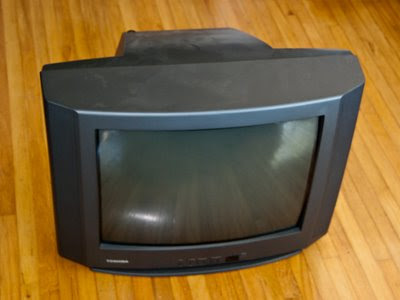
For some time my computer monitor has been bigger (not to mention newer and better) than our television. We've had an ancient (in technology terms) 21" CRT television for a long time.

It hasn't bothered me too much. We don't watch much TV and when we do, most shows hardly warrant high definition. ER in high def? Big deal. Movies maybe. And a wide screen would be nice for movies.

I did have it connected to my old Mac Mini and an EyeTV to play DVD's and use as a PVR and rent movies from iTunes. But the resolution on an old crt TV is pretty awful. It might barely manage 640 x 480, but software these days tends to want at least 1024. I managed by using the handy screen zoom feature of the Mac - it wouldn't have been usable without it.

Shaw (my cable company) has been bugging me to upgrade to digital for a long time. They finally got the price right (free!) so I let them send me a digital terminal. The downside is that the Mac can't change channels on the cable terminal (unless I get an IR blaster) so I still have the EyeTV hooked up to the analog cable. So if I want to use the Mac to record TV or to pause and skip commercials, then I can't use the digital cable. I could get an HD terminal with PVR but that's another expensive box, and I'd rather use my Mac. Oh well, like I said, I'm not really too worried about picture quality for regular TV shows.

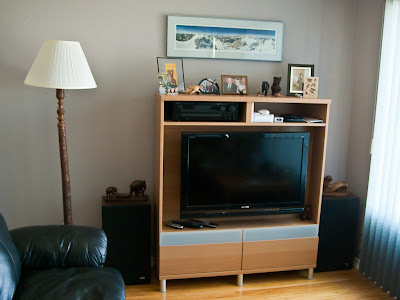
I've been planning on getting a new TV but the holdup was that our entertainment stand pre-dates big screen TV's and wasn't the right size or shape. We shopped for a new stand in town but couldn't find anything we liked. We found one we liked at Ikea in Edmonton, but they didn't have it in the color we wanted. Finally, on the way back from the mountains we stopped at Ikea in Calgary and got one.

The new wall unit wouldn't hold the old TV (not deep enough) so I decided I might as well take the plunge. I did a minimum of research on the internet (trying to avoid the tyranny of choice!) and ended up buying a 37" Sony Bravia XBR6. For movies and TV 720p would have been fine but I wanted full 1080p (1920 x 1080) resolution, partly for "future-proofing" and partly to view my photographs. (almost the same as the 1920 x 1200 resolution of my 24" iMac) And, yes, photographs look great on it :-)

I had my Mac hooked up to the old TV with the DVI to Video adapter. I was using the composite (RCA) video output but it also has S-Video so that's what I used to hook up the new TV. The results were poor. It only went up to 1024 x 768 resolution and it was quite fuzzy. For some reason I had it in my head that S-Video was high resolution and digital, but it's not. It's analog and not much better than composite. (The TV doesn't have DVI input, just HDMI so I couldn't directly hook up DVI.)

I looked at my neighborhood London Drugs but they didn't have anything better. However, my local Apple store (not an official Apple store, just a store that specializes in Apple stuff) had a DVI to HDMI cable. They also sold me an optical audio cable (DVI doesn't have audio) but surprisingly, the Sony doesn't have optical input, only optical output. However one of the HDMI ports is paired with RCA audio inputs so I used that.

The results were much better, I got the full 1920 x 1080, nice and crisp and perfectly readable.

However, the next day I fired it up and the display was "bigger" than the screen so the top menu was no longer visible. Strange. I check the Display preferences and they looked ok. I did notice that "Overscan" was turned on, so I tried turning this off, but then the display was too small - not filling the screen and no longer sharp. Eventually I rebooted and turned Overscan back on and it was back to working properly. I think what happened was that I turned the Mac on before the TV and it didn't recognize the display properly. I guess I'll have to remember to turn the TV on before the Mac. Probably at the same time would work since the Mac takes longer to boot than the TV. No, today I was careful to turn on the TV first, and it still did this. Even a restart didn't fix it. But toggling the overscan off and back on after the restart fixed it. Hopefully this won't be a recurring problem.

Regular DVD's are only 480i (720 x 480) resultion. You need Blu-Ray to get the full 1080p resolution. But I'm using the Mac as a DVD player, and although you can get external add-on Blu-Ray drives, OS X doesn't support Blu-Ray yet. Obviously I could get a separate Blu-Ray player, but I'm trying to reduce the number of boxes, not get more!

You also can't rent HD movies through iTunes on a regular Mac, only on an Apple TV. I'm not sure why they made that choice. To encourage people to buy Apple TV's? But isn't a more expensive actual Mac even better? I like the idea of the Apple TV - simpler and more energy efficient than a Mac. And you can run Boxee on Apple TV so you're not limited to the built-in software. But it can't act as a PVR. And I pretty much refuse to watch regular TV shows without a PVR since commercials drive me crazy.

DVD and regular iTunes movie resolution still looks pretty good scaled up to the higher resolution by the Mac. I assume it's doing similar processing as the "upscaling" that better DVD players and home theater systems do.

One thing I have noticed is that the Mac mini runs a lot hotter driving the new TV. I'm guessing this is due to more processing required for the higher resolution. I wonder if the newer Mac mini's would do better? I have come across people saying Apple TV has trouble driving full 1080 resolution due to the processing requirements.

I also took the plunge and moved my physical cd collection and cd player out of the living room. For a while now, I've had my old 30gb iPod hooked up to the stereo and used that. But Shelley still used the physical cd's. Now I don't even have the iPod hooked up - which means you have to fire up the Mac and TV to listen to music. It may be a little tough convincing Shelley that's an improvement! She still shies away from the Mac as a PVR, although if you ask me, it's no more complicated than the standalone PVR we had.

I was using my iPod instead of playing music via the Mac for a couple of reasons. One is that the iPod is pretty much instant on - no waiting for it to boot. Another issue was reading the screen, although I realize that FrontRow might have solved that. The other problem is how to access my music. My main collection is in iTunes on my iMac. I can share that library, but being energy conscious I turn my iMac off when I'm not using it, and then I can't access it. So I'd have to boot two machines. But I keep a mirror of the music files on my Time Capsule, so I ended up importing all the files into a local iTunes library on the Mac mini. That works well, but I'm not sure how I'm going to keep it up to date. Maybe I should keep a single main library on the Time Capsule. On second thought, the problem with this approach is that currently you have to manually connect the Time Capsule shared drive every time you start up, which is a hassle and won't help with convincing Shelley this is a "better" setup. There are ways to automatically connect it, but then that slows up the boot process. Maybe I should just periodically mirror my iTunes library from my iMac to the Time Capsule and from there to the Mac Mini. I think if I'm careful to keep the paths the same that will work.

I did still hook up the stereo receiver and run audio output from the TV to it, mainly to get better sound for music through the bigger JBL speakers rather than relying on the TV's little built-in ones.

But the receiver is getting dated too - it doesn't even have a remote! Maybe I should upgrade to a "home theater" system? I'm not really that concerned about surround sound for movies. I'd be afraid a set of small low end surround sound home theater speakers won't do as good a job for music as my current setup. I guess I could get a home theater system with an integrated Blu-Ray player. Or maybe there are decent speakers that would connect directly to the Mac that would eliminate the need for a receiver entirely. But what is the sound quality like for listening to music rather than playing games? Maybe I'll hold off on this - enough changes for one time!

The old TV
and the new setup:
Monday, January 19, 2009

New Computer


As I mentioned in Double Speed, I ordered a new Acer Veriton L460-ED8400 for at work. As you can see, it's certainly tiny. (about the same size as the book included for comparison) I ordered from Frontier PC who were very helpful figuring out what memory and hard drive I needed to go with it.

The only minor complaint about the Acer is that the connector between the optical drive and the motherboard is very flimsy. When we opened it up to put in the extra memory and the bigger hard drive a tiny fragment of plastic broke off the clip that holds the cable. We ended up having to replace it with a binder clip!

Otherwise, the Acer works great - it's small, fast, quiet. Vista seems to work well, including all the Aero effects.

I've gotten quite fond of the current Mac keyboard that I use at home. Compared to it, PC keyboards are incredibly clunky. They all seem to think the more bells and whistles the better. Personally, I want a minimum of bells and whistles. I wondered if a Mac keyboard would work on a Windows PC. I took my Mac keyboard to work and it functioned perfectly. So I went and bought another Mac keyboard. I use the wired version since I find the wireless one too small.


On the other hand, I'm not really fond of the Mac mouse. I'm not sure if it's the hardware or the driver, but right clicking is painfully unreliable. It's almost as if they finally gave in to having a right click, but they made it really crappy because they still didn't think you should be using it. It's especially painful running Parallels because Windows relies on right-clicking so much. So I bought a Logitech LX8 mouse. I liked the cordless receiver, especially since I could plug it into the front of the Acer. (It also would have been harder to use a Mac wireless mouse since they are Bluetooth and most PC's, including the Acer, don't have Bluetooth built in. (Macs do)

I kept the same monitor I've had for a while - a 24" Samsung SyncMaster 245BW that I'm quite happy with. I haven't gone to dual monitors, prefering a single large monitor. Partly maybe because I prefer to focus on one thing at a time. The same reason I don't keep my email running all the time. If I was buying a new monitor I think I'd be tempted by the new Apple 24-inch LED Cinema Display.

I'd say it was the easiest switch-over I've had. Despite moving more and more to on-line apps, I still install and use quite a lot of software. I wish there was a way to migrate Windows apps to a new computer. On the other hand, it's also nice to start fresh with clean installs.

Here's the main stuff:

- Kaspersky (we have been using AVG but we're thinking of switching)
- Firefox
- Thunderbird (for our separate internal email system)
- Open Office
- Scite
- Winmerge
- Gmail Notifier (so email links go to gmail, but not running all the time)
- Snagit
- PDFCreator
- KeePass
- LogMeIn
- TortoiseSVN
- MinGW G++
- Visual C++ 2003 (vc7)
- Visual C++ 2008 express (vc9)
- 7Zip
- GnuWin32 - grep, findutils, diffutils, fileutils/coreutils
- Google Earth
- Google Picasa
- Canvas

Plus all my Firefox add-ons:

- Adblock Plus
- Delicious Bookmarks (classic mode)
- Distrust
- dragdropupload
- Firebug
- FireFTP
- Foxmarks
- Google Gears
- Google Notebook
- IE View
- S3 Firefox Organizer
- Web Developer
- Yslow

I used Foxmarks to sync my bookmarks and passwords (more for the passwords since most of my bookmarks are in Delicious). Too bad you can't sync the add-ons themselves.

Wednesday, December 31, 2008

Double Speed

We have accumulated quite a large suite of tests for our Suneido applications. It takes about 100 seconds to run them on my work PC.

I happened to run the tests on my iMac (on Vista under Parallels under OS X) and was surprised to see they only took about 50 seconds - twice as fast! My iMac is newer, but I didn't realize it was such a big difference.

One of my rules of thumb over the years has been not to buy a new computer until I could get one twice as fast (for a reasonably priced mainstream machine). No point going through a painful upgrade for a barely noticeable 15 or 20% speed increase.

I usually like to go for the high end of the "normal" range. Buying the low end reduces the lifetime of the machine - it's out of date before you get it. And I'm not going to try to build the "ultimate" machine. You pay too big a premium and have too many problems because you're breaking new ground. And by the time you get it, it's not even ultimate any more.

Doubling the speed has gotten tougher over the years. CPU speeds have leveled out and overall speed is often limited by memory and disk since they haven't improved as much as CPU speeds.

The trend now is towards multi-core, which is great. But when you're still running single-threaded software (like Suneido, unfortunately) then multiple cores don't help much. And the early multi-core cpu's tended to have slower clock speeds and could actually perform worse with single-threaded software.

It's also gotten tougher to judge speed. In the past you could judge by the clock rate - 400 mhz was roughly twice as fast as 200 mhz. (I'm dating myself) But now there are a lot more factors involved - like caches and pipelines and bus speeds. And power consumption has also become more important.

Anyway, my rule of thumb has now triggered and it's time to look for a new machine. I decided I'd look for something small, quiet, and energy efficient yet still reasonably fast (i.e. as fast as my iMac). I looked at the Dell Studio Hybrid and the Acer Veriton L460-ED8400. The Dell is smaller and lower power but more expensive and not as fast - it uses a mobile cpu. The Acer is not as sexy looking but it's faster and cheaper. Both have slot loading DVD drives. For a media computer the Dell has a memory card reader, HDMI output, and you can get it with a Blu-ray drive. The Acer has gigabit ethernet and wireless built in.

Neither machine came with a big enough hard drive. These days I figure 500gb is decent. The Acer only had a 160 gb drive but at least it was 7200 rpm. The Dell offered 250 or 320 gb drives but only 5400 rpm. It seems a little strange considering how cheap drives are.

Ironically, I now find I need more disk space at home (for photos and music) than I do at work. Source code and programs are small. And my email and documents mostly live in the cloud.

I ended up going with the Acer plus upgrading the memory to 4 gb and the drive to 500 gb for about $1000. I paid a bit of a premium to order from a company I'd dealt with before. You can get cheaper machines these days, but it's still a lot cheaper than my iMac.

There are probably a bunch of other alternatives I should have looked at. But I don't have the inclination to spend my time that way. And the paradox of choice tells us that more alternative don't make us happier, in fact often the opposite.

I've also been wanting to run Vista. I know, the rest of the world is trying to downgrade to XP, but I've been running Vista on my Mac (under Parallels) and I don't have a problem with it. It's got some good features. I'm not a huge Windows fan to start with. I was thinking about trying Vista 64 but these machines didn't come with it and I hear there are still driver problems. So to keep things simple I'll stick to Vista 32.

One challenge will be to swap in the bigger hard drive. I assume Windows will come preinstalled on the hard drive in the computer and I won't get an install disk. Normally you'd plug the second hard drive in and copy everything over. But I suspect these small computers don't have room for a second drive. I should be able to plug both drives into another bigger machine that can take multiple drives and do the copy there.

It's always exciting (for a geek) to get a new machine. Of course, the part I'm trying not to think about is getting the new machine configured the way I want it and all my files moved over and software re-installed. Oh well, it's always a good opportunity to clean up and drop a lot of the junk you accumulate over time.

Monday, April 21, 2008

New Time Capsule

I just replaced my Linksys wireless router and Lacie network drive with a 1 tb Apple Time Capsule. My reasons for the change included:

- The Linksys router periodically "dies". Even my wife knows to unplug it, wait a few seconds, and plug it back in, but it's still a hassle. Since this fixes the problem I'm assuming it's the router, but I suppose it's possible it's something like the ISP DHCP. I'm crossing my fingers that a new router will fix the problem.

- The Lacie network drive was getting full.

- I was using a second Firewire Lacie drive for my Time Machine backups from my Mac mini. This drive was also running out of space.

- I wanted to make Time Machine backups of my MacBook, and the only way to do that without plugging in an external drive is with Time Capsule. (Time Machine won't work to a regular network drive. I'm not sure if that's just a marketing decision or whether there is some technical reason as well.)

- I could replace two boxes (router & network drive) with one - the less cables the better, if you ask me.

- I occasionally had range problems with wireless. I'm hoping the new router will help.

As usual, the packaging was slick and the hardware is attractive. I plugged it in, installed the software, and it worked.

At first I couldn't see the drive from the Windows machine but after I set the right workgroup it appeared.

The setup wizard only allowed WPA wireless security. I was still using WEP since I have some wireless devices that don't support WPA (like my Chumby). I realize WEP is minimal security but it's enough to stop my neighbors from accidentally using my network. I have used MAC address filtering in addition but it's a hassle when you add new devices and I always seem to end up turning it off. I see the regular configuration allows WEP but I haven't got around to changing it yet.

To keep things simple (at least I assume that's the reason), OS X only seems to offer a single "key" entry field. I'm never quite sure if this is hex or text or what. If you were Apple/Mac only it wouldn't matter - it just works. But when you're connecting to other things it can be confusing. I've seen references to using a dollar sign or 0x prefix to enter hex keys but it doesn't seem to be clearly documented (that I've seen).

Once I had it set up I switched my Mac mini Time Machine to go to the Time Capsule. Of course, the first initial backup is huge and takes a long time. And there's no way to move your existing Time Machine backups to the new drive.

I probably should have know better, but while that was chugging away I turned on Time Machine on my MacBook and pointed it at the Time Capsule. Of course, it also was a huge initial backup.

At the same time (I know, asking for trouble!) I was playing with the Time Machine options to exclude certain files and directories. Then I realized every time I changed the settings the initial backup started all over again!

Just to stress it a little more, I started copying the other files (pictures and music) from the old network drive to the new one. It took me a few minutes to get the network drive working again - it wouldn't show up until I re-ran the configuration utility. This copy ran for quite a while (an hour maybe?) and then aborted with an Error 50. I suspect my impromptu stress test uncovered some bug in the Time Capsule software.

When I went to bed the two Time Machine backups were still running. When I got up, the MacBook had finished. Unfortunately, I'd forgotten I had the Mac mini set to power off at night. When I started it up, it had to restart the backup from the very beginning! I realize this is just the initial backup, but given how long it takes, you'd think they would have made the software handle resuming a backup. This time, without all the other concurrent activity, the backup went smoothly and finished.

Or maybe I should say, more or less finished. For several more hours it popped up windows about backup up large quantities of files. I'm not sure what this was - I hadn't modified or added any significant amount of files. Why didn't it get this stuff on the initial backup? But eventually it seemed to settle down. The problem with this kind of system that just invisibly does stuff in the background is that you're never quite sure if it's working properly (at least if you're a cynical techie).

Once the backups were done I went back and copied the other data from the old network drive. Again, now that I wasn't trying to do too many things at once, it went smoothly. (Theoretically, if the software is "correct" it shouldn't matter how much stuff you do at once. But no software is "correct". As the saying goes, in theory, practice should be the same as theory, but in practice, it's not.)

So far so good. My only (minor) complaint is that, judging by the temperature of the case, the Time Capsule doesn't seem to go to "sleep" - even overnight, with no computers active (or even turned on). There's probably continuous activity on the internet side, but if nothing is awake on the LAN side, I would think it could still be smart enough to go to sleep.

One nice side benefit is that the Time Capsule hard drive is a lot quieter than the Lacie.

I know it's showing my age but I can't help continuing to be a little mind boggled by gigabytes of memory and terabytes of hard drive space. (I just listened to a podcast that said that in many cases algorithms had progress more than hardware and in these cases you'd be better off with a modern algorithm on old hardware than old algorithms on modern hardware. In theory that might be true in some cases, but modern software is never going to fit on old hardware. I can't even fit a single digital picture on a floppy disk, let alone something like Open Office.)

My next plan is to replace my Mac mini with a 24" iMac. I considered a quad core Mac Pro for not a lot more money, but I decided I'd prefer the reduced "clutter" of the iMac. And if I wanted an Apple monitor, then the Pro would end up quite a bit more expensive. When I bought the mini it was more in the nature of an experiment so I bought the cheapest Mac I could. Now that I've pretty much converted to Mac I want something a little "bigger" i.e. 4 gb ram, 1 tb disk. Nothing like RAW photos and virtual machine images to eat up disk space!

Thursday, July 05, 2007

New Network Hard Drive

With both Mac and Windows machines on my home network I decided I wanted some shared storage that they could all access equally. I can access shared directories on the Windows machine from the Mac (haven't tried the reverse). But that means I have to turn on the Windows machine. And it doesn't give the Windows machine any backup storage.

I looked at various possibilities but looking for something that explicitly supported Mac narrowed the choices. I ended up with a 320gb Lacie ethernet disk mini ordered through Frontier PC. I hadn't dealt with them before but they looked like a reasonable choice for a Canadian supplier. There were no problems dealing with them and shortly I had my drive.

I plugged it into my wireless router and it "just worked". It even came with a network cable.

I had no problem accessing it from Windows and it wasn't much harder from the Mac. The problem with the Mac was trying to get it to connect at start-up. On Windows this is a simple matter of a checkbox, and from the web I understand Mac OS 9 was the same. But not anymore. I found various suggested solutions, none of them simple or easy. One problem was how to supply the user and password for accessing the drive. In the end I used Automator. The funny part was that for all it's fancy drag-and-drop graphical workflow, it all came down to getting the right cryptic url. In other words, Automator ended up being window dressing on a command line.

In case any one is tackling a similar problem, what I ended up with was a "Get Specified Servers" action followed by a "Connect to Servers" action. The url for the "Get Specified Servers" needed to be "afp://user:password@ipaddress/sharename" with the appropriate user, password, and numeric ip address.

The other trick is actually getting it to run when you log in. Again, Windows seems simpler (but maybe just because it's more familiar), you just put stuff in the Startup folder. On OS X you do it through System Preferences > Accounts > Login Items - not exactly easily discoverable.

Originally I had thought I would keep the master copies of my music and photo libraries on the shared drive so I could access it from any of my computers. But this didn't work too well. For example, if the network drive was disconnected for any reason (as it often was when I was first struggling to get the connect at log in to work) then Adobe Lightroom would recognize (rightly) that the files were not available. The problem was when the network drive was reconnected, Lightroom would start checking the availability of the files - roughly 10,000 of them, one at a time - not a speedy process!

So now I'm mainly using the network drive as a backup. My next plan is to come up with a way to sync my music and photos between the Mac and the network drive, possibly using ChronoSync which I saw recommended.

One feature that I don't have on the Lacie drive is the ability to run the SlimServer for my SqueezeBox. Currently I am running the server software on my Windows machine - but that means it has to be turned on if I want to play music. Theoretically it should be possible since the Lacie runs Linux and there is a Linux version of SlimServer, but I couldn't find anything on the web about how to do it. It does support UPnP A/V but unfortunately the SqueezeBox won't accept that. It's the usual trials and tribulations of trying to get things to work together.